top of page
How to Use the App
Learn how to use our mapping app in simple, friendly steps.
Searching for a Place


- On the Map screen, tap the search box at the bottom of the map.
- Type the name of a town, or the name of a site you're looking for.
- A list of matches appear above as you type.
- Tap the one you want and the map will jump straight to it.
- Note if the icon does not match what's on the map its not a site listed.


Saving Favourites
- On any site's page, tap the pink heart button to save it as a favourite.
- Tap it again to remove it.
- On the Map screen, tap the "Favourites" heart button near the top.
- This will turn off all sites but your favorites.
- Tap it again to show every site again.

Finding Your Location
- On the Map screen, look for the round button with a crosshair/target symbol.
- Tap it.
- The map moves to show exactly where you are right now, with a blue dot.
- Your device may ask permission to know your location the first time - allow it for this to work.


Adding Your Own Site
- Tap "Add a Site" in the menu bar at the bottom
- Or Double Tap on the map when you have zoomed in
- Choose the type of site (Campground, Free Camp, etc).
- Fill in the site name and a short description.
- Scroll down and fill in the cost, maximum stay and maximum rig length.
- Tap on all the Facilities that are there.
- Tap the Publish Listing button at the bottom.


Changing the Map
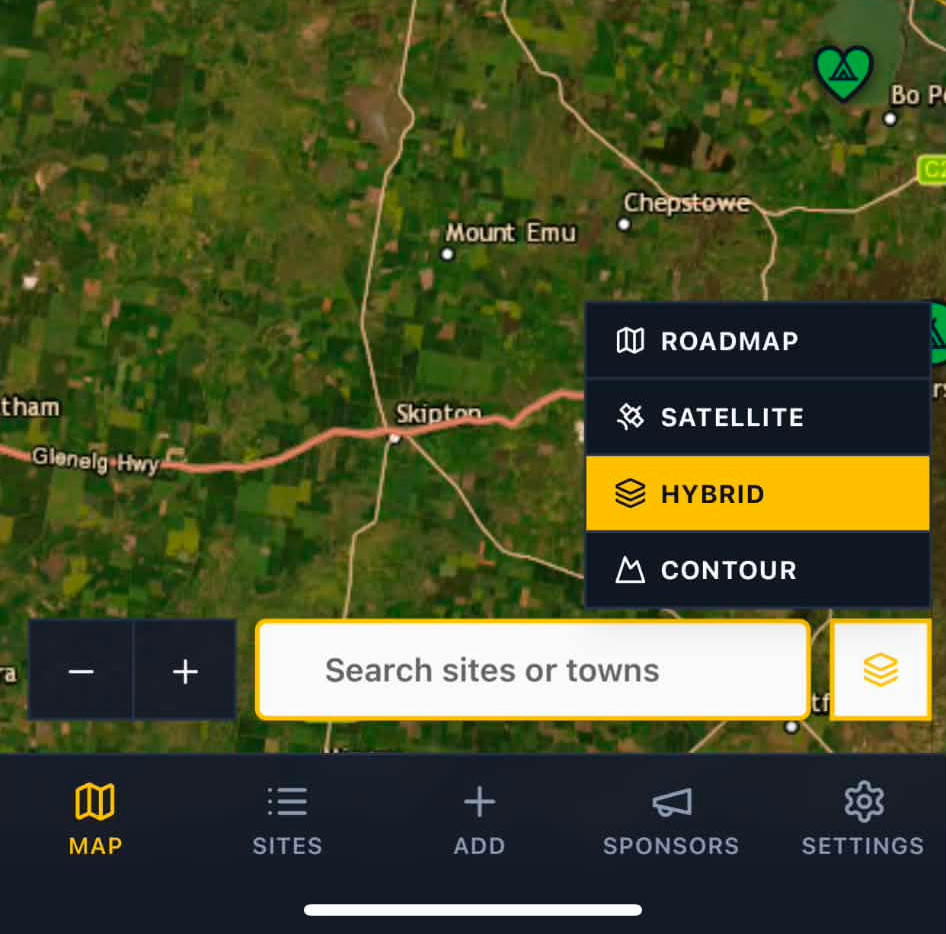
- On the Map screen, find the small square button near the search bar.
- Tap it.
- A short list appears: Roadmap, Satellite, Hybrid, and Contour.
- Tap whichever map you like, the map changes straight away.
Filtering the Map
- Tap the "Sites" button on the bottom menu bar
- Tap "Filter Sites."
- Under "Site Type," tap the kinds of places you want to see.
- Use the "Match All - And / Match Any - Or" to switch between Site Type AND / OR Ammenities.
- Scroll down to "Amenities" to also tick facilities you need.
- Tap the "Map" button on the bottom bar to go back to the map with your selections.

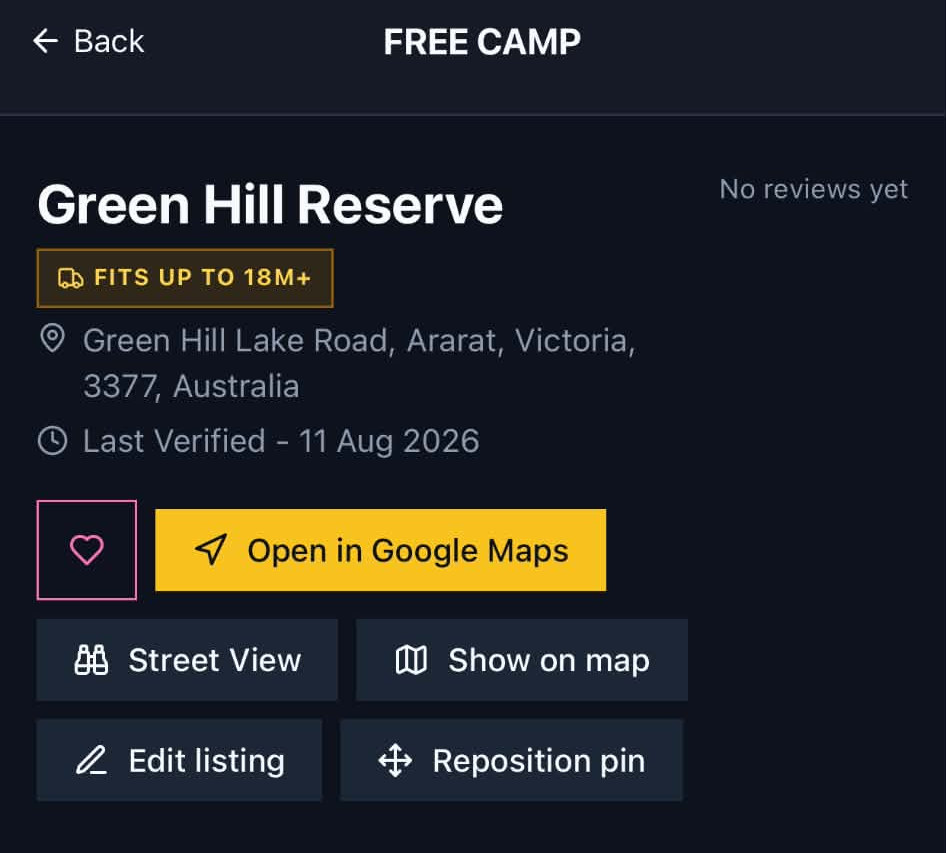
- Open the site you want to change.
- Tap "Edit listing."
- Change whatever needs updating.
- Tap "Save changes" at the bottom.
Editing a Site

Moving a Pin
- Open the site you want to move.
- Tap "Reposition pin."
- On the map, drag the highlighted pin to the correct spot.
- Tap on the "Save new location" button.
- Tap "Save" to confirm the new position.

Deleting a Site

- This can only be done by the person who created the site
- Open the site you want to remove.
- Tap "Edit listing."
- Scroll to the very bottom.
- Tap the red "Delete listing" button.
Using Street View

- Tap on the "Street View" button on the site.
- A split view of Street View and Satellite View will appear
- Tap on the white arrows to zoom around Street View
- Tap the "X" to go back to the app.
Setting Up Your Profile
- Tap "Settings" in the menu.
- Under "Default Map Style," choose the map look you want to see every time you open the app.
- Under "My Rig Length," tap the size that matches your rig.
- That's it, there's no save button, it saves itself.

Account & Profile
Manage your personal settings and profile within the app. We recommend setting your preferred rig size and location filters to ensure you only see campsites that are truly built for your vehicle. Your profile is your personal map of Australia's best spots.
bottom of page